Welcome & The Vibe-Coding Mindset
The shift that lets you build business tools without hiring a developer
Session Overview
20 minutes
What "Vibe Coding" Actually Is
Describe what your business needs in plain English. AI turns it into working automations, reports, dashboards, or small apps. No coding required. You bring the business knowledge; Claude handles the building.
The name sounds casual, but the idea is serious: you focus on the vibe — the outcome you want, the way you want it to feel and behave — and you let the AI worry about the technical plumbing underneath. Think of it like ordering a custom cake. You don't need to know how to run an oven, temper chocolate, or pipe frosting. You describe the cake — three tiers, lemon filling, "Happy 50th Maria" on top — and a skilled baker makes it real. Vibe coding is the same deal, except the "cake" is a report, a spreadsheet cleanup, or a small internal app, and the "baker" is Claude.
For decades, the only way to get software that fit your business exactly was to hire developers or settle for off-the-shelf products that almost fit. That gap — between what you actually needed and what you could afford to build — is where countless hours of manual copy-pasting, late-night spreadsheet wrangling, and "we've just always done it this way" workarounds lived. Vibe coding closes that gap. You describe the workaround you're tired of, and Claude builds the thing that removes it.
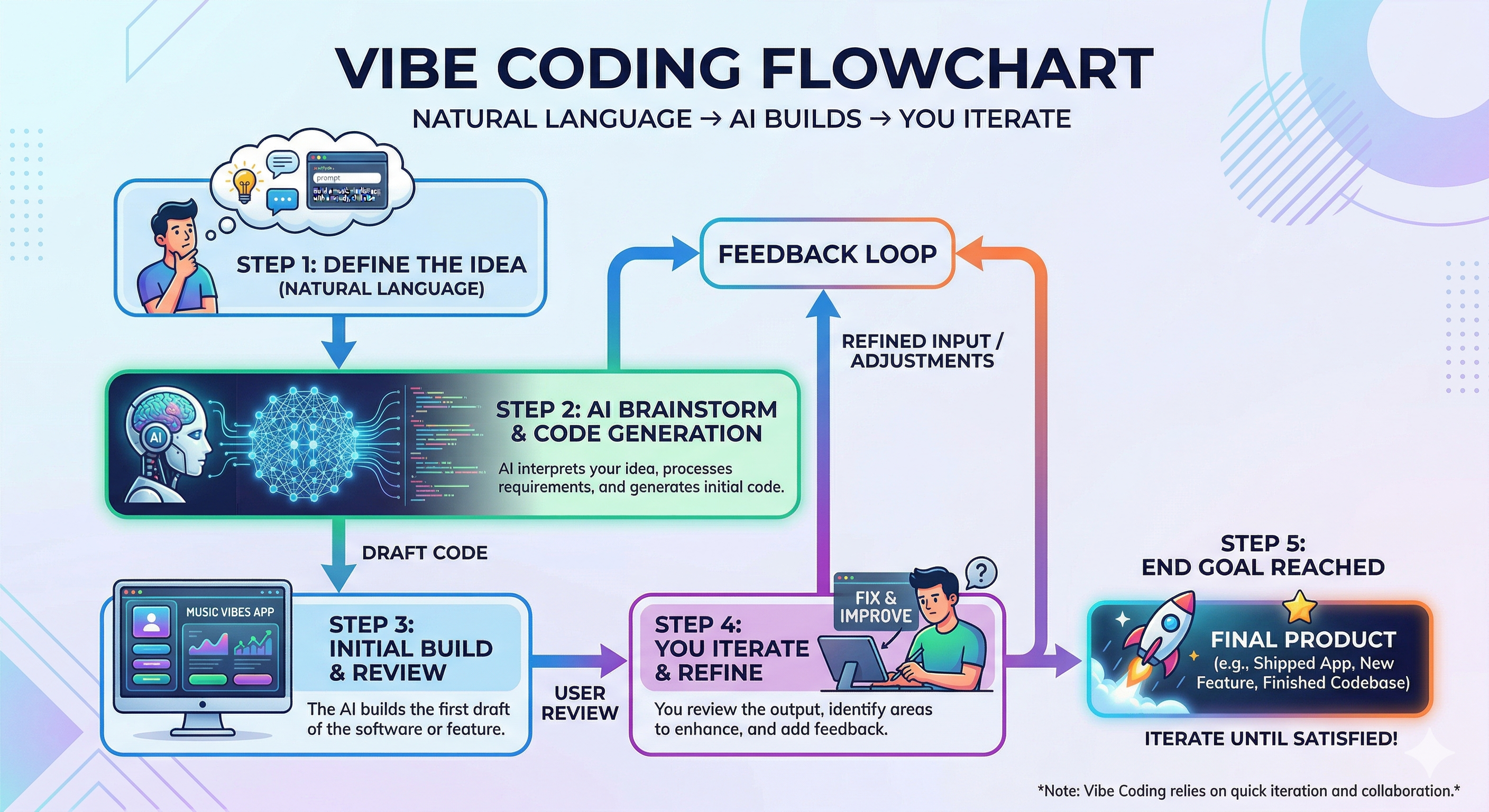
Watch it in action
New to the whole idea? This friendly beginner's explainer walks through what vibe coding is and how anyone — no coding background — can start.
"Vibe Coding Explained for Beginners" — by Kevin Stratvert · watch on YouTube
Why Owners & Managers Love It
Traditional software is slow, expensive, and requires a technical team. Vibe coding flips the model: you build exactly the tool your business needs, when you need it. For a small business, that difference is not a luxury — it is the whole game. Big competitors have IT departments and six-figure software budgets; you have a handful of people wearing ten hats each. Vibe coding hands you a slice of that big-company capability without the big-company overhead.
- 10× Faster: Weeks become hours. Go from "I wish we had a report for this" to having it the same afternoon — which means you can act on an idea while it's still fresh instead of watching it die in a backlog.
- No Dev Budget: Stop waiting on IT or paying agencies for small internal tools. The $3,000 quote for a "simple" spreadsheet automation becomes an afternoon of describing what you want.
- No Waiting: Adapt the moment a process changes — no ticket queue, no vendor change-request form, no "we can schedule that for next quarter."
- Rapid Iteration: Try an idea, refine it in minutes, roll it out to the team. If the first version isn't quite right, you fix it by simply saying what's off — not by filing a bug report and waiting a week.
- It Fits You Exactly: Off-the-shelf tools force your business to bend around their assumptions. A tool you describe bends around your business — your naming, your rules, your quirks.
Real Business Wins
Tools that used to need a developer or an expensive SaaS subscription — now built by you. Six examples real teams run today:
Auto-Generated Reports
Turn raw exports into a clean weekly sales, ops, or KPI report — formatted and emailed to the team automatically.
Expense & Invoice Cleanup
Drop in a folder of receipts and statements; get a categorized, tax-ready spreadsheet with duplicates flagged.
Meeting Notes → Actions
Transcripts and messy notes become executive summaries with owners, deadlines, and next steps.
Marketing Content Engine
Draft emails, social posts, and landing-page copy on-brand — in minutes, not days.
Customer & Review Analysis
Summarize hundreds of reviews or support tickets, surface top complaints, and track sentiment over time.
Data & CRM Cleanup
Deduplicate, reformat, and enrich messy spreadsheets and CRM records — the boring work, done for you.
Scheduling & Reminders
Turn a booking sheet into automatic confirmation and reminder drafts, so a dental office or salon cuts no-shows without extra front-desk work.
Quotes & Estimates
Feed in your price list and job details; get a clean, branded quote drafted in seconds — handy for an HVAC or landscaping crew quoting on the go.
To make this concrete, picture a neighborhood bakery. Every Sunday night the owner used to sit at the kitchen table with a shoebox of supplier receipts and last week's register export, hand-typing numbers into a spreadsheet to see whether the croissants were actually making money. With vibe coding, that same owner drops the receipts and the export into a folder, describes the report once, and gets a tidy weekly margin summary — freeing up a Sunday evening every single week. That is the kind of small, repeated win that adds up to real time and money over a year.
Your Mindset Shift
You're not becoming a programmer. You become the product owner, and Claude is your tireless junior colleague. You describe the outcome; Claude does the building. A product owner is simply the person who knows what the business needs and decides whether the result is good enough — a role you already play every day when you brief a bookkeeper, a designer, or a new hire. The skill you're really building here is the skill of giving clear instructions, and you almost certainly have it already.
The best part about a "tireless junior colleague" is that Claude never gets bored, never sighs at a repetitive task, and is happy to redo something for the tenth time until it's exactly right. You get the patience of a machine paired with the flexibility of a smart teammate — and you never have to feel guilty about asking "one more time, but this time group it by month."
Before: Great idea → search for software → nothing quite fits → compromise or pay a vendor → weeks later, maybe.
After: Great idea → describe it to Claude → working draft in minutes → you test → you refine → your custom tool is ready.
Notice what changed between "before" and "after": the distance between having an idea and having a working tool collapsed from weeks to an afternoon. When that distance shrinks, you start saying "yes" to improvements you used to dismiss as too small to bother with — and those small improvements are exactly where a lean business finds its edge.
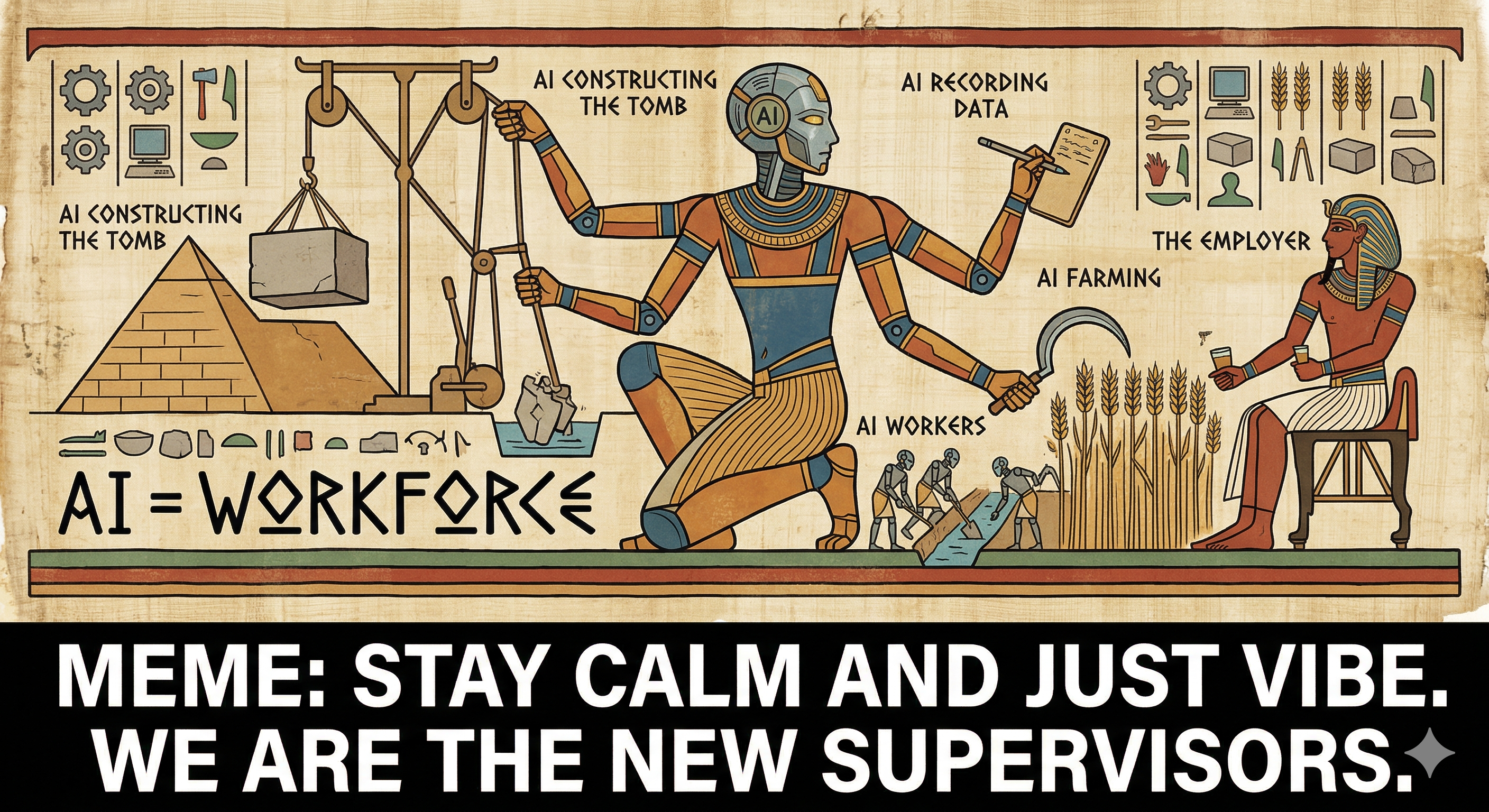
Your new reality: Don't learn to code. Learn to describe your business logic clearly. The AI handles the implementation; you provide the judgment and domain expertise.
Start with your most annoying task. The fastest way to fall in love with vibe coding is to point it at the chore you dread most — the monthly reconciliation, the copy-paste report, the receipt pile. Fixing something that actually bugs you turns "interesting demo" into "I can't believe I did this by hand for years."
Key Takeaways
- Vibe coding = plain English + AI = working business tools
- 10× faster, no dev budget, no waiting on IT
- You = product owner, Claude = tireless junior colleague
- Six wins: reports, expenses, meeting notes, marketing, customer analysis, data cleanup
- Your job: describe the outcome clearly. Claude's job: build it
Claude's 3-Stage Power System
Chat, Cowork, and Code — the right level of help for every task
Session Overview
45 minutes
Claude feels like having a consultant, a collaborator, and a full software team in one window. You choose the stage — start in Chat, step up to Cowork, then go full Code when you want a finished tool. You're never overpowered or underwhelmed.
Here's a helpful way to think about it: the three stages are like the different ways you might get help with your taxes. Sometimes you just need a quick answer to a question — that's Chat. Sometimes you want someone to sit down with your shoebox of documents and actually do the return with you, showing their work — that's Cowork. And sometimes you want a firm to set up an entire bookkeeping system that runs all year — that's Code. Same expertise underneath; you simply dial up how much you hand over.
Most people make the mistake of reaching for the heaviest tool too early, or never graduating past the lightest one. The whole point of learning the three stages is so you instinctively grab the right level of help for the size of the job — saving both time and frustration.
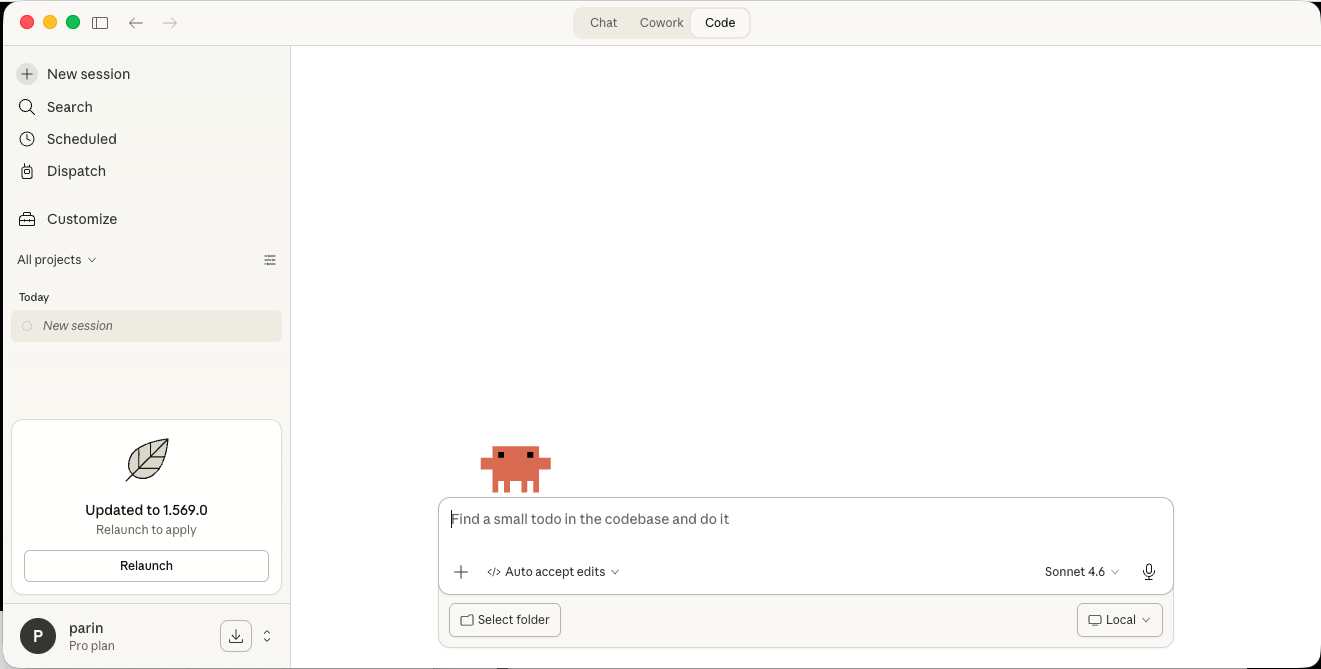
The Three Modes Explained
Understanding when to use each mode is the key to getting real work done without wasting time.
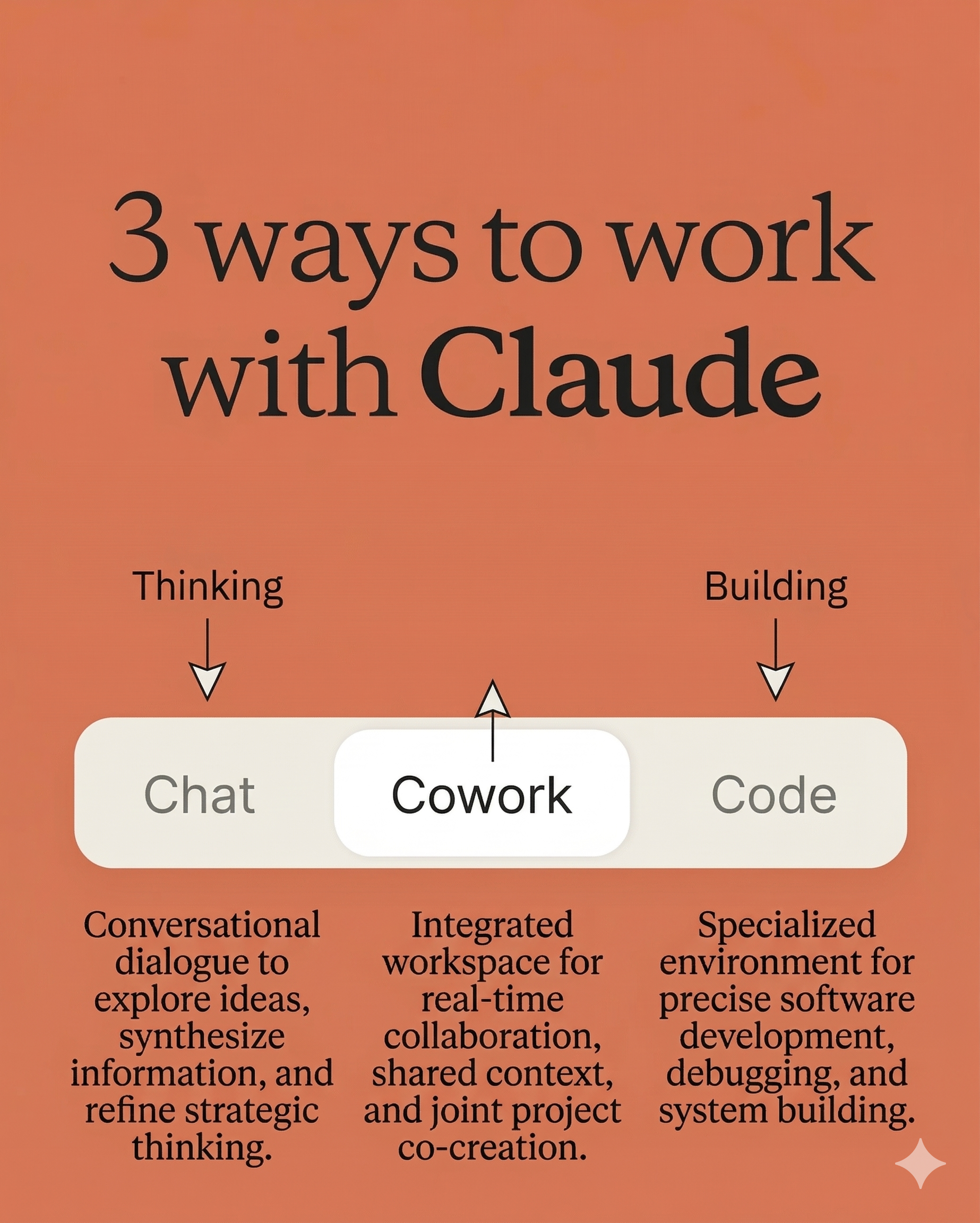
Stage 1 – Chat = Consultant Service
Quick expert advice, explanations, brainstorming. Perfect for getting unstuck or making a decision. Like having a knowledgeable business advisor on call 24/7. (Use: claude.ai chat window)
Chat is where you think out loud. There are no files to attach and nothing gets built — you're simply having a conversation with someone who has read an enormous amount and can explain almost anything in plain terms. If you'd normally text a savvy friend, phone your accountant with a quick question, or fall down a search-engine rabbit hole, Chat is the faster, calmer version of all three. It's also the ideal place to sharpen an idea before you ask Claude to actually do the work in a later stage.
When to use Chat:
- Understanding a concept, contract clause, or regulation
- Brainstorming pricing, positioning, or process ideas
- Drafting a policy, email, or job description
- Getting unstuck on a decision
- Quick research questions
Act as my operations consultant — explain what a clear refund policy should include for a small online store, in plain English
Stage 2 – Cowork = Automate a Workflow
Step-by-step collaboration with memory. Claude works with your actual files and apps to produce a finished deliverable, checking in with you along the way. Like a capable junior colleague sitting next to you. (Use: Claude Cowork in the desktop app — see the Cowork & SMB section below)
The magic word in that description is memory. Unlike a one-off question, Cowork keeps track of what you're working on across many steps — the files it opened, the decisions you made, the format you preferred last time. That's what lets it behave like a colleague who "gets it" rather than a stranger you have to re-brief every five minutes. You stay in the driver's seat, but you're no longer doing the typing.
When to use Cowork:
- Turning a folder of files into a finished report or spreadsheet — the raw stuff in, the polished thing out
- Multi-step tasks you'd normally do by hand across apps, like moving numbers from a PDF into a sheet and then into an email
- When you want to stay involved and approve each step, rather than hand over the keys entirely
- Recurring back-office work (month-end, reconciliations, digests) that eats the same hours every cycle
- Any job where you'd say "I know exactly what I want, I just don't have time to click through it all"
Cowork with me — turn this folder of 40 receipts into a categorized expense report with a tax-ready CSV, and flag any duplicates
Stage 3 – Code = Building a System
Full agent mode: plans, writes, debugs, and delivers a complete working tool — dashboards, internal apps, integrations. Like having a software team on demand. (Use: Claude Code — the CLI/IDE tool. See the "Build & Ship" page.)
This is the deepest end of the pool, and the good news is that most small businesses only need to swim here occasionally. You reach for Code when the thing you want isn't a document or a one-time task but a piece of software that lives on, gets used by other people, and connects several systems together. Claude does the heavy lifting — it writes the actual program, tests it, fixes its own mistakes, and hands you something that runs. You still don't write code; you review results and steer. Think of it as commissioning a custom tool rather than borrowing one.
When to use Code:
- A real, hosted internal tool your whole team uses
- Something that connects several systems together
- When you want Claude to handle the whole build end-to-end
- Production-ready dashboards and mini-apps
Build me an internal dashboard that pulls our sales data, shows this month vs last, and emails the team a summary every Monday morning
Pro Tip: Progressive Escalation
Start in Chat, escalate to Cowork as the task gets concrete, then move to Code when you're ready for a finished product. Always use the lightest tool that gets the job done. Reaching for Code to answer a quick question is like renting a moving truck to carry a single grocery bag — technically it works, but it's slow, clumsy, and unnecessary.
Escalation also protects your time in a subtler way: by the time you've talked an idea through in Chat, you understand it well enough to give Cowork crisp instructions, and by the time Cowork has produced a working draft, you know exactly what the finished system in Code should do. Each stage teaches you what to ask for in the next one, so you rarely waste effort building the wrong thing.
Example workflow:
- Chat: "What should a good customer-onboarding checklist include?" (ideas)
- Cowork: "Turn that into a shared onboarding tracker from our client list." (building together)
- Code: "Make it a web app the whole team can update, hosted for us." (complete system)
The same three-step arc works for almost anything: an inventory process, a hiring pipeline, a customer follow-up routine. Talk it out, build a draft together, then — only if it earns its keep — turn it into a permanent system. Many useful tools never need to leave Stage 2 at all, and that's perfectly fine.
You can move up and down freely. Escalation isn't a one-way door. If a Cowork task raises a strategy question, drop back to Chat to think it through, then return. The stages are tools on a workbench, not rungs you're forced to climb in order.
Key Takeaways
- Stage 1 (Chat): quick questions, explanations, drafting
- Stage 2 (Cowork): hands-on work with your files, with memory
- Stage 3 (Code): full system planning and development
- Start low, escalate up as the task gets concrete
- Progressive escalation is the most efficient workflow
Claude Cowork & Claude for Small Business
The no-terminal way to put an AI teammate to work inside the tools you already use
Why this matters for your business
The single biggest unlock for non-technical teams
You just met Cowork as Stage 2 of the 3-Stage system. Because it's the single most useful stage for a non-technical team — and the home of Claude for Small Business — it earns its own module. Here's the full picture.
What Is Claude Cowork?
Claude Cowork is an agentic "digital coworker" built into the Claude desktop app (Mac & Windows). Instead of just chatting, you give it a goal and it works across your local files and applications to return a finished deliverable — no terminal, no code. It went generally available on April 9, 2026 and is included on all paid Claude plans.
You point it at a folder (kept sandboxed for safety), describe the outcome in plain English, and Claude plans the steps, does the work, checks the result, and keeps going until it's done.
"Agentic" is the word you'll hear a lot, and it simply means Claude can take actions, not just talk. A regular chatbot tells you how to reconcile your invoices; an agent actually opens the files, does the matching, and hands you the finished reconciliation. "Sandboxed" is the safety word: it means Claude works inside a fenced-off copy of the folder you chose, so it can't wander into the rest of your computer or touch anything you didn't point it at. Think of it as giving a contractor the key to one room, not the whole building.
The reason this is such a big deal for non-technical teams is that it removes the two scariest parts of "using AI at work" — the technical setup and the fear of it doing something behind your back. There's nothing to install beyond the desktop app, nothing to configure, and nothing happens to your real systems without your say-so. You get the leverage of automation with the comfort of a colleague who checks with you before doing anything irreversible.
Watch it in action
Anthropic's own two-minute introduction shows Cowork taking a goal and returning a finished result — the clearest way to see what "an AI that does the work" actually looks like.
Official Anthropic demo — "Introducing Cowork" · watch on YouTube
The four jobs Cowork is built for
File Organization
Rename, sort, and de-duplicate local files and folders so a chaotic drive becomes tidy and searchable.
Document Preparation
Assemble and synthesize source materials into structured drafts — proposals, decks, memos.
Research Synthesis
Pull the relevant points across many sources into a clear summary you can act on.
Data Extraction
Turn dense, unstructured documents (contracts, reports, PDFs) into clean structured tables.
These four jobs cover an astonishing share of everyday office work, and the real power shows up when they combine in a single task — Cowork might organize a folder, extract the numbers from what it finds, research a few open questions, and assemble the whole thing into a finished document without you ever switching apps. It stitches the steps together the way you would, just faster and without losing its place.
Claude for Small Business
Launched May 13, 2026, Claude for Small Business is a toggle you switch on inside Cowork. It adds 15 ready-to-run agentic workflows and connects Claude to the tools you already pay for. Anthropic built it for the businesses the AI boom skipped — as they put it, "the 15-person HVAC company, the 30-person landscaper, the 50-person real estate brokerage."
Think of the 15 workflows as pre-built recipes. Instead of starting from a blank page and figuring out how to describe, say, a month-end close, you pick the "close the books" recipe and Claude already knows the general shape of the job — it just needs your specifics. That's a huge head start for someone who knows their business cold but has never thought about how to break a task into steps for an AI. You're not learning automation from scratch; you're filling in blanks on a form that already works.
The framing matters, too. Big enterprises have spent years and fortunes wiring AI into their operations. The corner accounting firm, the family HVAC company, and the two-location restaurant group never had the budget or the staff to do the same — until the tools they already use quietly grew an AI teammate that speaks their language. Claude for Small Business is deliberately aimed at that "left-behind" majority, which is most likely to include a business like yours.
Ready-to-run workflows, by department
The 15 workflows are grouped the way a business actually thinks — by the hat you're wearing at the moment. Whether you're in finance mode balancing the books, sales mode chasing leads, or marketing mode planning a promotion, there's a recipe that already understands the general shape of the job. Here's the lay of the land.
Finance
Plan payroll against your cash position, close the month with book-to-settlement reconciliation, chase invoices, run margin analysis, and organize for tax season.
Operations
A "business pulse" dashboard — cash position, sales trends, pipeline movement, and the week's commitments in one view.
Sales
Triage and prioritize leads, read the customer pulse, and track campaign attribution back to revenue.
Marketing
Analyze campaign performance, spot revenue gaps, draft promotions, and generate on-brand assets.
Customer Service & HR
Review contracts and track signatures, and develop content and support strategy.
How it works
Toggle it on → connect your tools → pick the job → Claude drafts a plan → you approve before anything sends, posts, or pays.
Connects to the tools you already use
Trust & safety by design. Tasks are user-initiated, your existing app permissions are preserved, and you approve before anything is sent, posted, or paid. On Team and Enterprise plans, Anthropic doesn't train on your data by default.
That approval model is worth pausing on, because it's what makes this safe to hand real business work. Claude drafts and proposes; you decide. Nothing leaves your control on its own — no email fires off to a customer, no invoice gets paid, no record gets overwritten — until you look at what Claude intends to do and say yes. It behaves like a trustworthy new employee on their first week: eager and capable, but always checking with you before it does anything that can't be undone.
Two Workflows, Start to Finish
The best way to understand Cowork with Claude for Small Business is to walk through what it actually feels like to use. Here are two everyday examples, told step by step.
Example 1: Month-end reconciliation for a coffee shop
Imagine you run a small coffee shop. Every month you need to make sure the money that actually landed in your PayPal account matches the invoices and sales recorded in QuickBooks — a chore that normally means an evening of squinting at two screens. Here's how it goes in Cowork:
- You state the goal. You open Cowork, switch on Claude for Small Business, and type something like the prompt below — plain English, no jargon, no menus to hunt through.
- Claude connects and reads. With your permission, it pulls last month's settlements from PayPal and the matching invoices from QuickBooks, reading both the way you would but in seconds rather than hours.
- Claude does the matching. It lines up each payment against its invoice, ticks off everything that agrees, and sets aside anything that doesn't — a missing payment here, a double charge there, a fee that wasn't recorded.
- Claude shows its work and asks before changing anything. You get a clear one-page summary: what matched, what didn't, and why. Crucially, it does not "fix" your books on its own — it proposes the changes and waits for your nod.
- You approve. You glance down the exceptions, agree with most, flag one for your bookkeeper, and approve the rest. The month is closed before your coffee's gone cold.
In Cowork: "Match last month's PayPal settlements to my QuickBooks invoices. Tick off everything that agrees, list anything that doesn't with the likely reason, and give me a one-page summary. Don't change anything in QuickBooks — just show me what you'd change and wait for my OK."
Example 2: A quarterly customer newsletter for a landscaping company
Now picture a 30-person landscaping company that wants to send existing customers a seasonal newsletter — a spring promotion, a few care tips, and a friendly check-in — but never quite finds the time. In Cowork, the whole thing becomes an afternoon:
- You describe the outcome. "A short spring newsletter with a 15%-off aeration offer, three lawn-care tips, and a warm note from the owner."
- Claude gathers the raw material. It reads your customer list, past promotions, and any notes you point it to, so the tone and offers match what's worked before.
- Claude drafts the content and the artwork. It writes the copy and, through the Canva connection, lays it out into an on-brand design you can actually send.
- You review and refine. You read the draft, ask it to soften one line and swap a tip, and it updates everything in place — no back-and-forth with a designer.
- You approve the send. Only when you're happy does anything go out, and even then it's you clicking the final button, not Claude acting on its own.
In both stories, notice the shape: you supply the goal and the judgment, Claude supplies the hours of grunt work, and a human approval gate sits at the end of anything that touches money or customers. That's the pattern behind every one of the 15 workflows.
Notice, too, how little "AI expertise" either example required. You didn't configure anything, learn a query language, or think about how the apps connect. You described a familiar business outcome the way you'd explain it to a new assistant, and the finished work came back for your review. That is the entire promise of Claude for Small Business in a sentence: the depth of a capable back-office team, reached through the simplicity of a plain-English request.
Which workflow should you try first?
With 15 recipes on the menu, the natural question is where to begin. The best answer is almost always the task that currently eats the most of your own time and the least of your creativity. If you dread month-end, start with reconciliation. If invoices sit unpaid because chasing them feels awkward, start with collections. If your marketing is an afterthought because there's never time, start with a campaign draft. The goal of your first run isn't to impress anyone — it's to feel, in your own business, the moment a chore you hated simply took care of itself.
A gentle first outing also builds the habit that keeps you safe: read what Claude proposes, approve deliberately, and note anything you'd tweak next time. After two or three cycles you'll trust the workflow the way you trust a reliable employee — and you'll start wondering which chore to hand over next.
Watch it in action
See it on real work: a walkthrough of the everyday Cowork workflows an Anthropic team actually runs — a morning briefing, an ad-account audit, and a live reporting dashboard.
"Claude Cowork for marketing ops" — by Claude (official) · watch on YouTube
What does it cost?
There's no extra charge for Claude for Small Business beyond your Claude license and whatever partner tools you already pay for. Cowork itself is included on all paid Claude plans — Pro (~$20/month) is fine for light use; heavier or team use fits Max, Team, or Enterprise.
Put that in perspective: for roughly the price of a couple of coffees a week, a single owner or manager gets a teammate that can reconcile books, draft campaigns, and clean up data. If even one of those jobs used to cost you a Sunday afternoon or a monthly bill to a freelancer, the plan pays for itself many times over. And because it rides on the tools you already subscribe to, you're not stacking yet another expensive platform onto your budget — you're getting more out of the ones you already have.
Free help getting started
Anthropic is running a 10-city AI-fluency tour (Chicago, Tulsa, Dallas, Baton Rouge, Birmingham, Salt Lake City, Baltimore, San Jose, Indianapolis, and more) with free half-day workshops, plus a free on-demand "AI Fluency for Small Business" course built with PayPal.
Official free course: Anthropic Academy's "AI Fluency for Small Businesses" teaches your whole team practical, everyday AI skills using the 4D framework — Delegation, Description, Discernment, and Diligence. Built with PayPal, free to register, and written for non-technical staff across sales, operations, and back-office roles.
Take the free courseIf the idea of "learning AI" feels daunting, these are a gentle on-ramp designed specifically for non-technical owners and managers — no prior experience assumed. The in-person workshops are a chance to bring your own real tasks and leave with something working, and the on-demand course lets the rest of your team get fluent at their own pace. Together they mean nobody on your staff has to figure this out alone.
In Cowork: "Reconcile last month's PayPal settlements against our QuickBooks invoices, flag anything that doesn't match, and give me a one-page summary. Ask me before making any changes."
Learn more: Claude Cowork · Claude for Small Business
Key Takeaways
- Cowork = an AI teammate that finishes real work, no terminal, on all paid plans
- Claude for Small Business adds 15 ready-to-run workflows inside Cowork
- Connects to QuickBooks, PayPal, HubSpot, Canva, DocuSign, Google Workspace, M365
- You always approve before anything sends, posts, or pays
- No extra charge beyond your Claude license and existing tools
Automation Superpowers
Hands-on: automate the busywork you do every week
Session Overview
50 minutes
Hands-on! Automate what you do manually in Excel, Google Sheets, and email. Turn recurring tasks into workflows that run in the background, freeing you to focus on decisions.
Here's the mindset that unlocks automation: your calendar and your to-do list are full of tasks that are important but not creative — the same steps, in the same order, on the same day each week or month. Those are the tasks a machine should own. Automating them isn't about replacing judgment; it's about clearing the busywork off your plate so your judgment has room to breathe. Every hour you hand to a workflow is an hour back for the parts of the business only you can do.
Connect Your Business Data
Automation starts with data you already have. You don't need to learn any API — just tell Claude where the data lives and what you want. (An API is just the technical term for the doorway one app uses to talk to another; the good news is Claude walks through those doorways for you.)
Spreadsheets & CSVs
Exports from your POS, accounting, or CRM — the most common starting point.
PDFs & Documents
Invoices, contracts, statements — Claude reads them and pulls out the numbers.
Your Apps
QuickBooks, HubSpot, Google Workspace and more — connected through Cowork.
Simple Analysis & Alerts
Once data is flowing, define a condition once and let the system watch it for you. This is the "set it and forget it" layer of automation: instead of remembering to check something every day, you tell Claude what to watch for and it taps you on the shoulder only when it matters. A tireless night-shift employee whose whole job is to notice — and who never calls in sick.
Overdue Invoice Alert
Get a daily list of invoices past due, ready-to-send reminder drafts included.
Low-Inventory Alert
Flag any item below its reorder point before you run out.
Daily Sales Summary
Yesterday's revenue, top products, and week-over-week change, delivered each morning.
Cash-Flow Watch
See upcoming bills vs. expected receipts so nothing catches you off guard.
New-Lead Routing
Score and assign incoming leads to the right person automatically.
At-Risk Customer Flag
Spot customers who've gone quiet so you can reach out before they churn.
New Review Alert
Get pinged when a new online review lands, with a suggested reply drafted — so a restaurant responds within the hour instead of the week.
Document Processing
The classic Cowork win: turn piles of documents into clean, usable data. This is where the "wow" moment usually happens, because turning a stack of PDFs into a spreadsheet by hand is the exact kind of soul-draining work everyone hates — and Claude eats it for breakfast.
- Receipts → expense report: categorized, totaled, tax-ready, so shoebox season stops being a season
- Contracts → key terms: dates, renewal clauses, obligations extracted, so an auto-renewal never sneaks up on you again
- PDFs → spreadsheet: line items pulled into structured rows you can actually sort and total
- Applications/forms → summary table: compare candidates or vendors at a glance instead of flipping between twenty documents
- Statements → clean ledger: months of bank or card statements standardized into one consistent, searchable list
News & Market Digest
Information overload is real. Let Claude read the noise and hand you the signal.
- Industry news: summarize what changed in your sector this week
- Competitor watch: track competitors' pricing, launches, and reviews
- Sentiment: classify customer feedback as positive, negative, or neutral
- Themes: surface the recurring complaints and requests worth acting on
Help me build a simple workflow that:
1. Reads our weekly sales export (CSV)
2. Calculates revenue, top 5 products, and change vs last week
3. Emails the team a clean summary every Monday at 8am
Automate the task, not the judgment. Let Claude gather, calculate, and draft — but keep yourself as the final check on anything that spends money, emails a customer, or changes a record. The goal is to remove the typing, not the thinking.
Getting Started
The hardest part is starting. A simple progression:
- Start small: pick one recurring task (e.g., the weekly sales summary)
- Describe it to Claude: "summarize this export and email it to me"
- Test it: run it once and check the result
- Iterate: "now add last week's comparison and top products"
- Expand: add more data, more rules, more recipients as you gain confidence
Resist the urge to automate your entire business on day one. The teams that succeed pick one small, high-annoyance task, get it working end to end, and feel the win — then let that momentum carry them to the next one. A single reliable workflow you trust beats ten half-finished ones you don't.
Key Takeaways
- Start from data you already have: spreadsheets, PDFs, your apps
- Automate alerts: overdue invoices, low stock, daily sales, at-risk customers
- Turn documents into clean data with Cowork
- Let Claude digest news, competitors, and customer feedback
- Start small, iterate, expand — don't automate everything at once
The 5% You Actually Need to Know
Now that you've seen the wins — just enough concepts to communicate clearly with your AI partner
Session Overview
30 minutes
Super high-level only — no jargon overload. You only need about 5% of programming knowledge to vibe code effectively. The goal: understand enough to describe what you want.
Why learn even 5%? Not so you can write code — Claude does that — but so you can talk about your work in words the AI immediately understands. It's the same reason a good manager learns a little of the language spoken by every department: you don't need to do the accountant's job, but knowing what "reconciliation" or "accrual" means lets you brief them clearly and spot when something's off. These four ideas are that shared vocabulary between you and Claude.
The reassuring truth is that you already use every one of these concepts in your business — you just call them by different names. Once you see the everyday version behind each technical term, the fear tends to melt away.
The Operator's Translation Guide
These concepts sound intimidating, but translated into everyday business terms they're intuitive.
Variables
Labeled boxes where you store a piece of information. Your business runs on these every day. Every labeled cell in a spreadsheet is a variable; so is every field on a form. The label tells you what's inside — "Customer Name," "Total Due" — and the value is whatever you've put there today.
- In business: customer name, order total, inventory count, an invoice due date
- In code:
customer = "Acme Co",order_total = 1450.00 - Why it matters: helps you tell Claude exactly what data to track, and to name it clearly, so the results come back labeled the way you think about your business
Loops
Doing the same thing across many items automatically — the heart of automation. Whenever you catch yourself doing the identical task once per row, once per customer, or once per file, you've found a loop. It's the difference between stamping one envelope and running the whole stack through a postage machine.
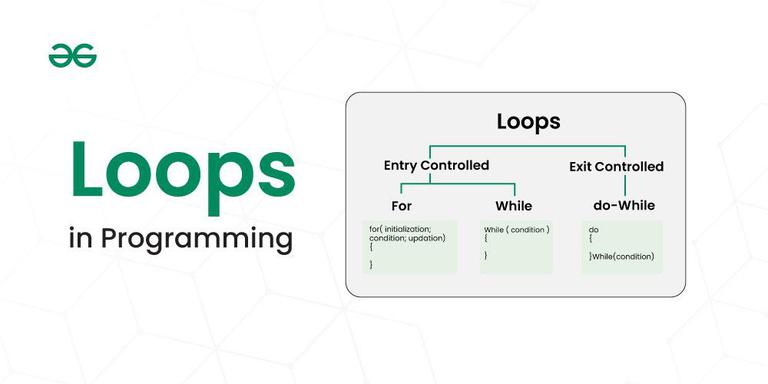
- In business: "for every overdue invoice, send a reminder", "for each row in the export, calculate margin"
- In code: "loop through all customers and flag anyone who hasn't ordered in 90 days"
- Why it matters: loops turn manual, repetitive tasks into instant ones
Functions
Reusable tools that do one job. Think of a saved calculator you use again and again. A function is like a well-trained employee who does exactly one task perfectly every time — you hand them the inputs, they hand back the result, and you never have to re-explain the steps. Once it exists, you just call on it.
- In business: "calculate profit margin", "format this as our standard report"
- In code: a function you call with any order to get its margin
- Why it matters: consistency — change it once, it updates everywhere, so your whole team's numbers stay in agreement instead of drifting apart in a dozen private spreadsheets
If-Statements
Making decisions based on conditions — this is where your business rules live. Any policy you'd phrase as "if this happens, then do that" is an if-statement waiting to be written down. Your instincts as an owner are full of them; the AI just needs you to say them out loud.
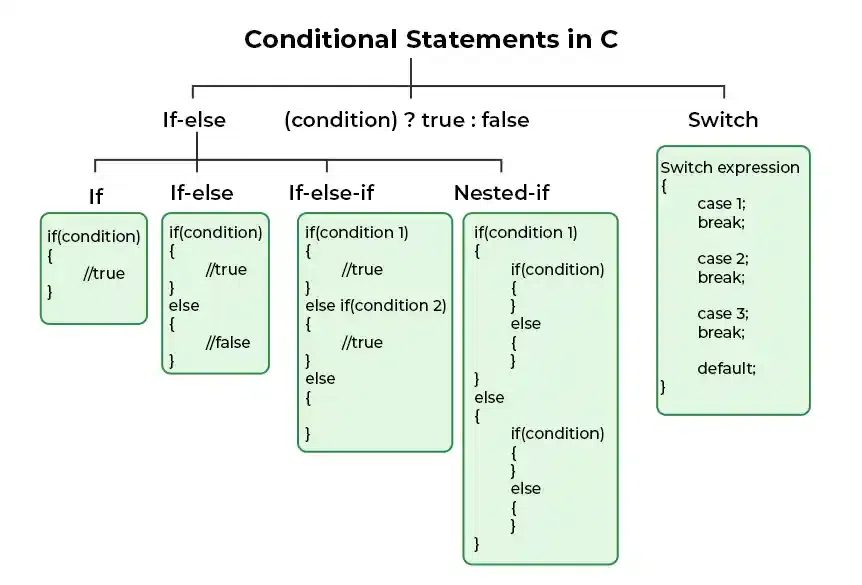
- In business: "if an invoice is 30+ days overdue, send a reminder", "if stock drops below 10, reorder"
- In code:
if days_overdue > 30: send_reminder() - Why it matters: if-statements encode your policies into rules a computer runs automatically
The Universal Pattern: Data → Logic → Output
Almost everything a business tool does follows this pattern. Programming works the exact same way. You start with information (data), you apply your rules to it (logic), and you produce something useful (output). A weekly sales report? Register data in, "group by product and compare to last week" logic, a tidy summary out. An overdue-invoice chaser? Invoice data in, "anything past 30 days" logic, reminder emails out. Once you can spot these three parts in any task, you can describe it to Claude.
Data
Orders, customers, invoices, inventory, leads, your spreadsheets and app exports.
Logic
Your rules and policies — scoring, thresholds, approvals, calculations.
Output
Reports, alerts, dashboards, emails, a tidy CSV, an action list.
You Don't Need to Be an Expert
The beauty of vibe coding: understand these ideas just well enough to explain what you want. When in doubt, describe it in plain English — "check all my invoices and email me anything overdue" — and Claude works out the loops, conditions, and data structures.
In fact, one of the most useful habits you can build is to simply tell Claude what you're trying to achieve and then ask it to explain its plan back to you in plain terms. If the explanation matches what you meant, you're good; if it doesn't, you correct it in a sentence. That back-and-forth — not memorizing definitions — is how non-technical people get great results. You supply the "what" and the "why"; Claude fills in the "how."
Key Takeaways
- Variables = labeled data storage
- Loops = repeat an action across many items
- Functions = reusable tools/calculators
- If-statements = your business rules
- Data → Logic → Output is the universal pattern
- Understand enough to communicate, not to code from scratch
Big-Picture Architecture
How real apps are built — in plain business terms
Session Overview
30 minutes
Understanding how applications are built in simple terms. No CS degree required — just enough to communicate what you want and make good decisions.
Why bother with this at all if Claude does the building? Because knowing the rough anatomy of an app lets you have a smarter conversation about it — the same way understanding that a house has a foundation, framing, plumbing, and wiring helps you talk sensibly with a contractor even if you'll never pour concrete yourself. You'll make better requests, understand trade-offs, and know what question to ask when something isn't working.
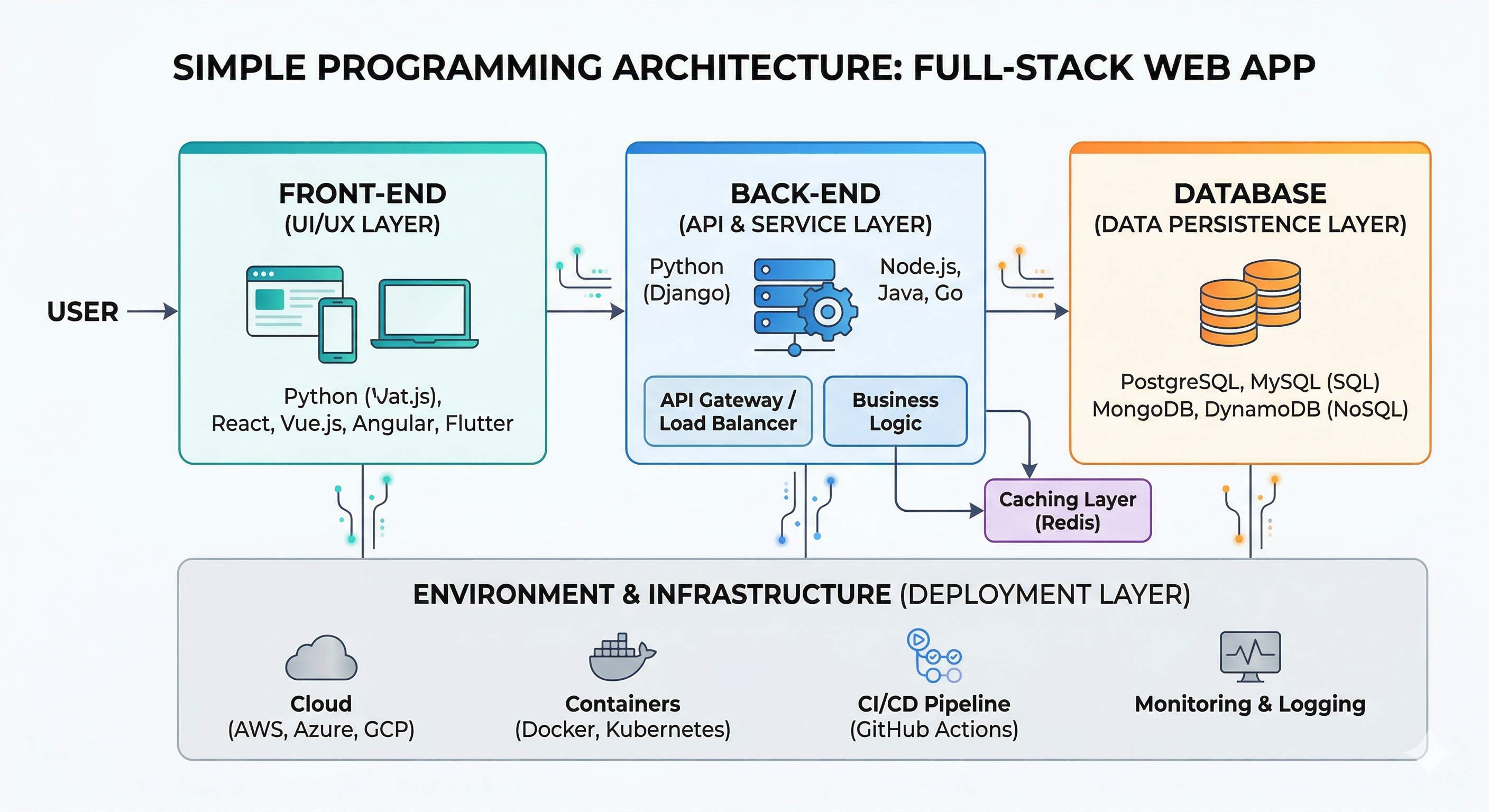
The Four Key Components
Every modern business app has four main parts. Here's a homely analogy: think of a restaurant. The dining room is the front-end (what customers see), the kitchen is the back-end (where the real work happens), the pantry is the database (where everything is stored), and the waiters are the API endpoints (carrying orders and dishes back and forth). Every app you've ever used has these same four roles under the hood.
Front-end
What you see — the dashboard, forms, and buttons your team interacts with.
Back-end
The brain — the calculations, rules, and processing that do the real work.
Database
Storage — your customers, orders, and history, kept safely and queryable.
API Endpoints
Connectors — "give me this customer's orders", "save this record" — how the parts talk.
How Claude Builds Systems
You describe the outcome; Claude handles architecture planning, the front-end, back-end logic, database design, and connecting to outside services like QuickBooks or your email. In other words, it plays the role of the whole design-and-build crew — architect, kitchen designer, electrician, and decorator — while you stay the owner who decides what the finished place should do and who it's for.
A practical tip: when you brief Claude, describe the app in terms of these four parts and it will organize its work the same way. "Here's what the team should see (front-end), here are the rules that run the numbers (back-end), here's the data it stores (database), and it should pull from our sales sheet (a connection)." That structure turns a vague wish into a buildable plan.
Architecture Diagram
A typical internal business tool:
QuickBooks, HubSpot, Sheets] BE -->|Notify| NOTIF[Email / Slack Alerts] DB -->|Records| FE EXT -->|Business Data| BE
Build me a simple web dashboard for our team

Requirements:
- Show this month's revenue, orders, and top customers
- Pull data from our sales spreadsheet (I'll connect it)
- A clean chart of revenue over the last 12 months
- Make it look professional and easy to read
Want to actually build and host one of these? The Build & Ship page covers databases, hosting, and Git step by step.
Key Takeaways
- Front-end = what you see (dashboard, forms)
- Back-end = the brain (logic, calculations)
- Database = storage (customers, orders, history)
- API endpoints = connectors between the parts
- Claude can generate the whole stack — you describe, Claude builds
Choosing Your Surface: Desktop, IDE & CLI
Which Claude surface to use for what — and when the simple desktop app is all you need
Session Overview
30 minutes
Good news first: most business tasks need no editor at all. The Claude desktop app + Cowork handles reports, documents, and automations directly. You only need an IDE or CLI when you're building a real, hosted app for your team.
Let's demystify the toolbox, because the words "IDE" and "CLI" scare people off far more than the tools themselves deserve. All three of the options below are just different windows into the same Claude — the difference is how much building you're doing and how much you want to see under the hood. Pick the lightest one that fits the job, exactly like the three stages in Module 2.
Three Ways to Work with Claude
Desktop App (Cowork)
For most people. Point-and-click. Great for documents, spreadsheets, research, and everyday automation. No setup beyond installing the app.
IDE (VS Code / Cursor)
When you build apps. A visual editor where you can see project files, run things with a button, and let Claude edit code alongside you.
CLI (Claude Code)
The power tool. Claude runs in your terminal, plans and writes whole projects, runs commands, and ships finished software. This is "Stage 3 — Code".
IDE vs CLI — what's the difference?
Both are for building real software; they're just different surfaces. An IDE (short for "integrated development environment," but really just a fancy editor) shows you the project like a set of documents in a filing cabinet, with buttons to run things. A CLI (a "command-line interface," i.e. a text window you type into) feels more like chatting with Claude while it does the work behind the scenes. Neither requires you to write code — they just differ in how much of the machinery is visible. If in doubt, start with the IDE; it looks the most like the apps you already use.
| IDE (editor) | CLI (terminal) | |
|---|---|---|
| Feels like | A visual document with buttons & panels | A chat/command window that types back |
| Best for | Seeing and editing files, quick tweaks | Letting Claude build & run a whole project |
| Learning curve | Gentle — it looks like an app | Steeper — but Claude drives most of it |
| Examples | VS Code, Cursor, Antigravity | Claude Code |
The Editors
 VS Code
 Cursor
 Antigravity
- VS Code: free, most popular, official Claude extension. Start here — if you only ever learn one editor, make it this one.
- Cursor: a VS Code fork with AI built in from the ground up, so the AI features feel more native; a natural next step if you outgrow the basics.
- Antigravity: Google's newer agent-first IDE — experimental, evolving fast, and worth watching, but not where a first-timer should begin.
Don't agonize over this choice. They're all close cousins, and the one you pick first won't lock you in — the skills carry straight over. For nearly everyone reading this, the honest answer is: install VS Code, add the Claude extension, and never think about the others until you have a specific reason to.
Quick Setup (only if you're building an app)
- Download VS Code from code.visualstudio.com
- Install the Claude extension from the Extensions marketplace
- Sign in with your Claude account
- Open a folder for your project
- Ask Claude to build — then run and refine right there
Ready to go further — Git, hosting, and databases? Head to Build & Ship.
Key Takeaways
- Most business work needs no editor — the desktop app + Cowork is enough
- IDE = visual editor for building & tweaking apps
- CLI (Claude Code) = the power tool that builds whole projects
- Start with VS Code + the Claude extension when you build
Wrap-Up & Next Steps
Safety, your first projects, and where to go next
Session Overview
20 minutes
Congratulations — you now have the mindset and tools to start vibe coding for your business. Let's cover safety, limitations, and your best first projects. None of this is meant to scare you off; think of it as the same common sense you'd apply to any capable new hire — set clear boundaries, check the early work, and trust grows from there.
Safety & Good Habits
Protect sensitive data: The simplest rule of thumb is to treat a chat window like a conversation you'd be comfortable having in a busy café — fine for general work, not the place for secrets. When in doubt, leave it out.
- Never paste customer PII, passwords, card numbers, or bank credentials into a chat — "PII" just means personally identifiable information, like a customer's full name paired with their address or Social Security number
- Use Cowork's approval step — review before anything sends, posts, or pays, and never rubber-stamp it out of habit
- Test on sample/dummy data before pointing a workflow at the real thing, so a mistake shows up on practice data instead of your live books
- On Team/Enterprise plans, data isn't used for training by default — prefer those for company data that shouldn't leave the building
AI limitations: Claude is remarkably capable, but it is not infallible, and pretending otherwise is where people get burned. Keep these honest limits in mind:
- It can make mistakes or "hallucinate" — that's the industry term for confidently stating something that isn't true, which is exactly why you always review the output
- It may not know your company's specific quirks unless you tell it — your pricing rules, your naming conventions, that one client who gets special terms
- Generated tools need testing before the whole team relies on them, the same way you'd trial a new process on one branch before rolling it out everywhere
- It works from what you give it — vague instructions produce vague results, so clarity in equals quality out
Approve First
Keep the human in the loop for anything that sends money, emails customers, or changes records.
Test on Samples
Validate on a small, safe dataset before running on live business data.
Review Everything
Understand what a tool does before your team depends on it.
Best Next 3 Projects for Your Business
Momentum beats ambition here. These three projects are ordered so each one teaches you what you need for the next, and every one of them replaces a task you almost certainly already do by hand. Pick the one that matches a chore you're sick of, and you'll have both a working tool and the confidence to build the next.
Project 1: Weekly Report Generator
Difficulty: Beginner
- Read your sales/ops export
- Produce a formatted summary
- Email it to the team on a schedule
Project 2: Expense Automation
Difficulty: Beginner–Intermediate
- Drop in receipts & statements
- Categorize and total them
- Export a tax-ready spreadsheet
Project 3: Team Dashboard
Difficulty: Intermediate
- Live view of revenue, orders, pipeline
- Pulls from your spreadsheet or apps
- Hosted so the whole team can see it
Resources & Community
Essential Resources
- Claude Documentation: docs.anthropic.com
- Claude Cowork: anthropic.com/product/claude-cowork
- Claude for Small Business: anthropic.com/news/claude-for-small-business
- Go further: our Build & Ship and Power Platforms pages
Community & Support
- Reddit: r/smallbusiness, r/Entrepreneur
- Anthropic Help Center & community forums
- Free official course: AI Fluency for Small Businesses (Anthropic Academy)
A Reality Check (Just for Laughs!)
Keep these tongue-in-cheek truths in mind while you build. They're jokes, but there's a real lesson hiding in each one: stay curious, stay skeptical, and never fully switch off your own judgment just because the AI sounds sure of itself. A little healthy humor keeps you humble — and humble operators catch the mistakes that overconfident ones miss.

The "Looks Good to Me" Moment
When the AI hands you 200 lines you don't understand, but you click "Accept" anyway because it has a confident tone. 🤷

The "Fixed It!" Flex
AI breaks something, then proudly announces "Fixed the bug I introduced a moment ago." Like a contractor who bills you to repair their own mistake. 🔥🚒

The "I Have No Idea What I'm Doing" Power Trip
"Build me an AI that predicts next quarter's sales using quantum mechanics." Nobody in the room knows what that means — but here we are. 📈🚀
Key Takeaways
- Never paste customer PII or credentials — use approval & test data
- Keep a human in the loop for money, emails, and record changes
- Review AI output before the team relies on it
- Start simple: weekly report, expense automation, team dashboard
- Prefer Team/Enterprise plans for company data
Free Official Courses from Anthropic
Anthropic Academy courses — free to register and built for exactly this journey, from your first prompt to building and shipping real tools.


All three are free to register on Anthropic Academy. A Claude account is recommended to follow along (and, for the developer courses, an API key).
Additional Resources
Everything you need to keep building
You don't need much to get going — most of what you'll use, you already have. This short shelf of tools and links is everything required to keep the momentum from this session, whether you're automating your first weekly report or working toward a hosted team dashboard. Bookmark this page and come back to it as your ambitions grow.
Essential Tools

Claude
claude.ai — your primary AI teammate (Chat, Cowork, and Code)
Claude Desktop + Cowork
The no-terminal way to get real work done on your files and apps
VS Code
code.visualstudio.com — free editor for when you build apps
Google Sheets / Excel
Where most of your business data already lives — the perfect starting point
Power Platforms
Open-source ERP/CRM + AI forecasting — see our Power Platforms page
Build & Ship
Git, databases, and hosting explained — see our Build & Ship page
Learning Path
Treat this as a ladder, not a to-do list — climb one rung at a time, and only when the last one feels comfortable. There's no prize for rushing to the top, and plenty of value at every level.
- Start: automate one weekly report with Cowork — a single, repeatable win
- Progress: add alerts and document processing as you learn what saves you the most time
- Advanced: build a hosted team dashboard the whole company can rely on (Build & Ship page)
- Expert: adopt open-source ERP/CRM and AI forecasting to run larger parts of the business (Power Platforms page)
Community Support
- Reddit: r/smallbusiness, r/Entrepreneur
- Anthropic Help Center & community forums
- Free official course: AI Fluency for Small Businesses (Anthropic Academy)